Zarządzanie plikami cookie używanymi do celów reklamowych, takich jak personalizacja reklam, remarketing i analiza wydajności reklam.
1.2.1.1. Change email and disable two-step authentication
Important points:
- Requests are only accepted on behalf of the account owner whose access needs to be restored. Requests from other persons will be rejected.
- Resubmitting a request automatically cancels the previous request if it has not yet been processed.
- If your application is approved, the following changes will be made to your account:
- Disabled all methods of two-step authentication (2FA).
- Deleted phones.
- Deleted bank cards.
- Reset password.
Examples of situations where you may need to restore access:
- The mailbox used to log in to your account has been lost or is unavailable.
- It is not possible to pass two-step authentication (2FA) by any of the previously enabled methods.
Available ways to request an email change and disable two-step authentication:
- BankID — only for accounts of individuals or FOP.
- Paper workflow — for individuals only, to apply you will need to print and fill out an application form, send scanned copies of documents and your own photo with them in hand.
Submit request
flowchart LR
individual@{ shape: stadium, label: "👤 Individual" }
fop@{ shape: stadium, label: "🧑💼 FOP" }
company@{ shape: stadium, label: "🏢 Legal entity" }
subgraph Submit request
bankid@{ shape: rounded, label: "🪪 BankID" }
esign@{ shape: rounded, label: "🌐 Vchasno
or Paperless" } paper@{ shape: rounded, label: "📄 Paper
application" } identification@{ shape: rect, label: "✔️ Identification" } application@{ shape: rect, label: "📝 Form
application" } signing@{ shape: rect, label: "🔏 Sign with EDS" } paperapp@{ shape: rect, label: "⬇️ Download
and fill out
application" } upload@{ shape: rounded, label: "📎 Attach scan copies
and photos" } end wait@{ shape: rect, label: "⏳ Wait for
application review
(1-3 business days)" } reset@{ shape: rect, label: "❌ Disable 2FA,
remove phones and bank cards
and reset password" } done@{ shape: stadium, label: "✔️ Done" } individual-->bankid individual-->esign individual-->paper fop-->bankid fop-->esign company-->esign bankid--->identification esign-->application application-->signing paper-->paperapp paperapp-->upload identification-->wait signing-->wait upload-->wait wait-->|✅|reset reset-->done
or Paperless" } paper@{ shape: rounded, label: "📄 Paper
application" } identification@{ shape: rect, label: "✔️ Identification" } application@{ shape: rect, label: "📝 Form
application" } signing@{ shape: rect, label: "🔏 Sign with EDS" } paperapp@{ shape: rect, label: "⬇️ Download
and fill out
application" } upload@{ shape: rounded, label: "📎 Attach scan copies
and photos" } end wait@{ shape: rect, label: "⏳ Wait for
application review
(1-3 business days)" } reset@{ shape: rect, label: "❌ Disable 2FA,
remove phones and bank cards
and reset password" } done@{ shape: stadium, label: "✔️ Done" } individual-->bankid individual-->esign individual-->paper fop-->bankid fop-->esign company-->esign bankid--->identification esign-->application application-->signing paper-->paperapp paperapp-->upload identification-->wait signing-->wait upload-->wait wait-->|✅|reset reset-->done
- Open the access restore page.
- Select the type of service, specify its identifying data and click "Continue":
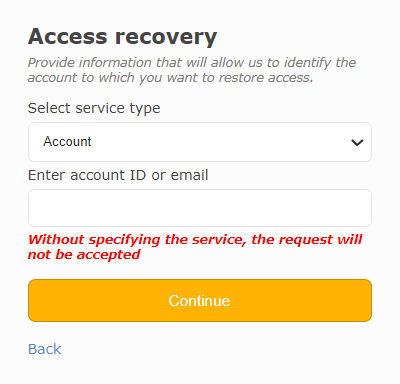
- Account — your ID or account email.
- Domain — the name of your domain.
- Hosting account — the name of your hosting account.
- Site — the name of your site.
- Corporate mail — the name of your mail domain.
- VPS — IP address or number of your VPS (numbers only).
- Dedicated server — IP address or the number of your dedicated server (numbers only).
- Storage — the name of your storage.
- MySQL, PostgreSQL, etc. — the name of your instance.
- Submit request using the appropriate method:
Attention!
Only for accounts of individuals or FOP.- Fill out the form and click "Submit request":
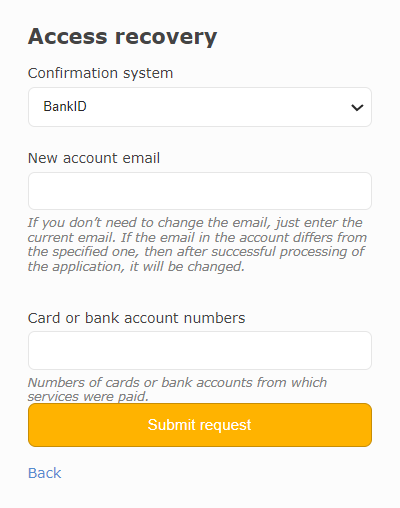
- Confirmation system — BankID.
- New account email — new email for your account on our site:
- To disable two-step authentication without changing your email — your current address.
- To change your email address and disable two-step authentication — new address.
- Card or bank account numbers — the numbers of the bank cards or bank accounts used to pay for the services.
- When restoring access to an account with an unidentified type or full name additionally attach a receipt of payment for services.
- Use one of the identification channels available on the official BankID site:
- Banks:
- PrivatBank.
- monobank.
- ID card (passport).
- Electronic digital signature (EDS).
- MobileID.
- Fill out the form and click "Submit request":
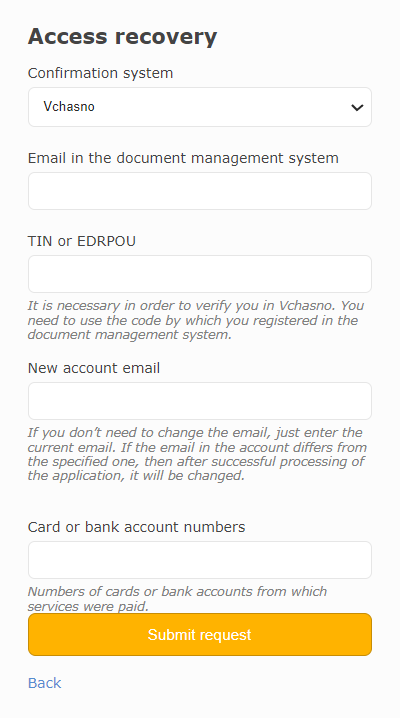
- Confirmation system — Vchasno.
- Email in the document management system — email to which your Vchasno account is registered.
- IPN or EDRPOU — depends on the type of account to which access is being restored:
- Account registered to an individual or FOP — your IPN.
- Account registered to a legal entity — EDRPOU of the legal entity.
- New account email — new email for your account on our site:
- To disable two-step authentication without changing your email — your current address.
- To change your email address and disable two-step authentication — new address.
- Card or bank account numbers — the numbers of the bank cards or bank accounts used to pay for the services.
- When restoring access to an account with an unidentified type or full name additionally attach a receipt of payment for services.
- Sign the formed document using EDS in the Vchasno service.
- Fill out the form and click "Submit request":
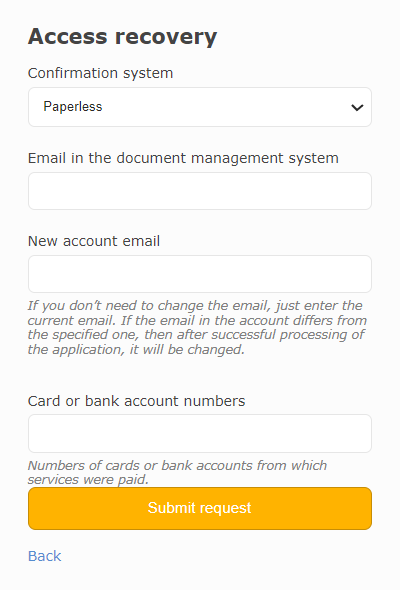
- Confirmation system — Paperless.
- Email in the document management system — email to which your Paperless account is registered.
- New account email — new email for your account on our site:
- To disable two-step authentication without changing your email — your current address.
- To change your email address and disable two-step authentication — new address.
- Card or bank account numbers — the numbers of the bank cards or bank accounts used to pay for the services.
- When restoring access to an account with an unidentified type or full name additionally attach a receipt of payment for services.
- Sign the formed document using EDS in the Paperless service.
Attention!
Only for accounts of individuals.Fill out the form and click "Submit request":
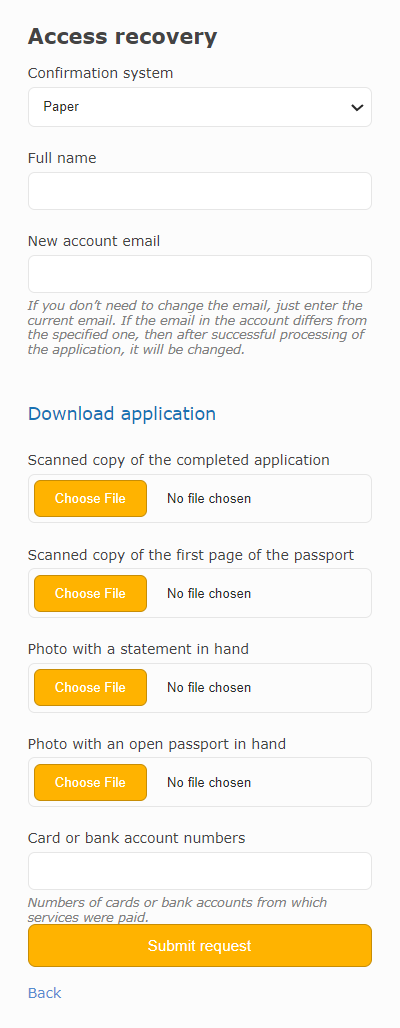
- Confirmation system — Paper.
- Full name — your full name as it appears on your account.
- New account email — new email for your account on our site:
- To disable two-step authentication without changing your email — your current address.
- To change your email address and disable two-step authentication — new address.
- Download application — click on the link and download the application form. Print it out and fill it in.
- Scanned copy of the completed application — attach a scan copy of the filled application form.
- Scanned copy of the first page of the passport — attach a scan copy of the first page of your passport. Instead of a passport, it can be any document confirming your identity — for example, a foreign passport or a driver's license.
- Photo with statement in hand — attach a photo of yourself with the filled out application in your hand. The photo should show your face and the text on the application.
- Photo with an open passport in hand — attach a photo of yourself with your passport open in your hand. The photo must show your face and the name in the passport.
- Card or bank account numbers — the numbers of the bank cards or bank accounts used to pay for the services.
- Wait for the results of the application review within 1-3 business days from the date of its submitting. They will be sent to the email address you provided.
(5)